Record calls, emails, meetings and reminders as Activities
Activities keep a record of your team's work with an employer: the calls you make, the emails you send, the meetings you hold and the actions you need to take. Each activity belongs to an Employer and one of its contacts. Users, Admins and Team Owners can add activities.
Add an activity
-
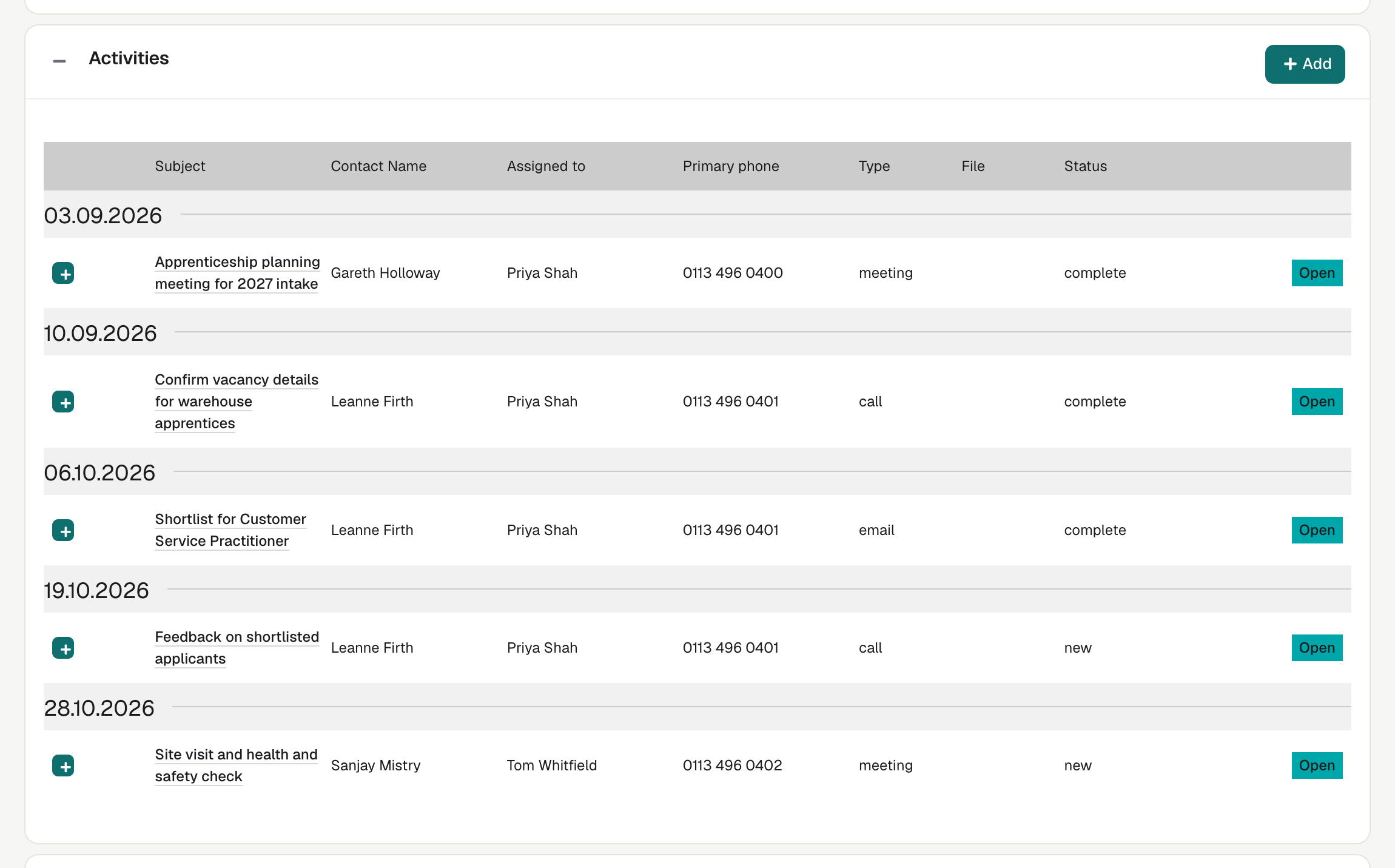
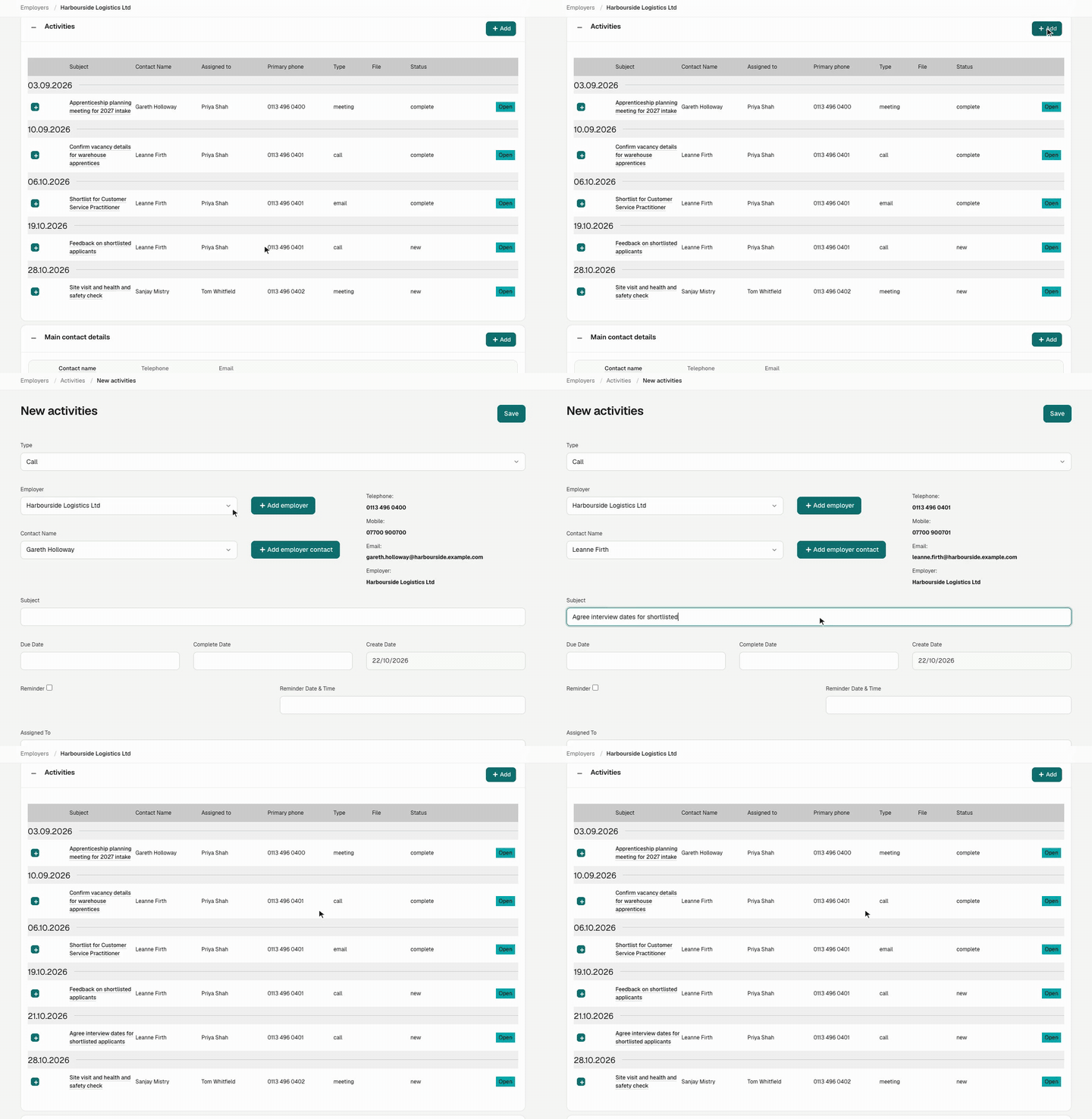
Open the Employer or the Contact, and select Add in the Activities panel. The employer (and contact) are filled in for you.
You can also go to Employers → Activities and select Add.
-
Choose the Type: Call, Email, Meeting or Action.
-
Check the Employer and choose the Contact Name. enrola shows the contact's telephone, mobile and email below.
-
Type a Subject.
-
Choose who it is Assigned To, a Priority (Low, Medium or High) and a Due date.
-
Add a Note, and any files on the Attachments tab.
-
Select Save.
| Type | Required |
|---|---|
| Call, Meeting, Action | Employer, Contact Name, Subject, Assigned To, Due date |
| Employer, Contact Name, Subject |
Important. Saving an Email activity sends the email to the contact straight away. The Note is the body of the email. See Send an email to an applicant or contact.
If the employer or contact isn't in enrola yet, select Add employer or Add employer contact on the activity page.
Complete an activity
- Open the activity.
- In the list beside Save, choose what happens next:
- Completed and Close marks the activity complete.
- Complete and Call, Complete and Email, Complete and Meeting or Complete and new Action marks it complete and opens a new activity of that type, ready for the follow-up.
- Select Save.
The list starts at Complete, which leaves the activity open. Choose one of the options above to complete it.
A follow-up activity shows the earlier ones at the top, for example "Previous activity Confirm vacancy details completed by Priya Shah on 10/09/2026".
To record when something actually happened, fill in Complete date. The Employers list's Last Contacted column shows the latest Complete date among the employer's activities.
Set a reminder
- Tick Reminder.
- Choose the Reminder date & time.
- Select Save.
Around the reminder date and time, enrola sends an email headed "Reminder for activity:" followed by the subject. The email links to the activity and shows the contact, the due date and the note.
Note. The reminder goes to the person who last saved the activity, not to the person it is assigned to. If you set a reminder for a colleague, ask them to save the activity themselves.
See what is due: Employers → Activities
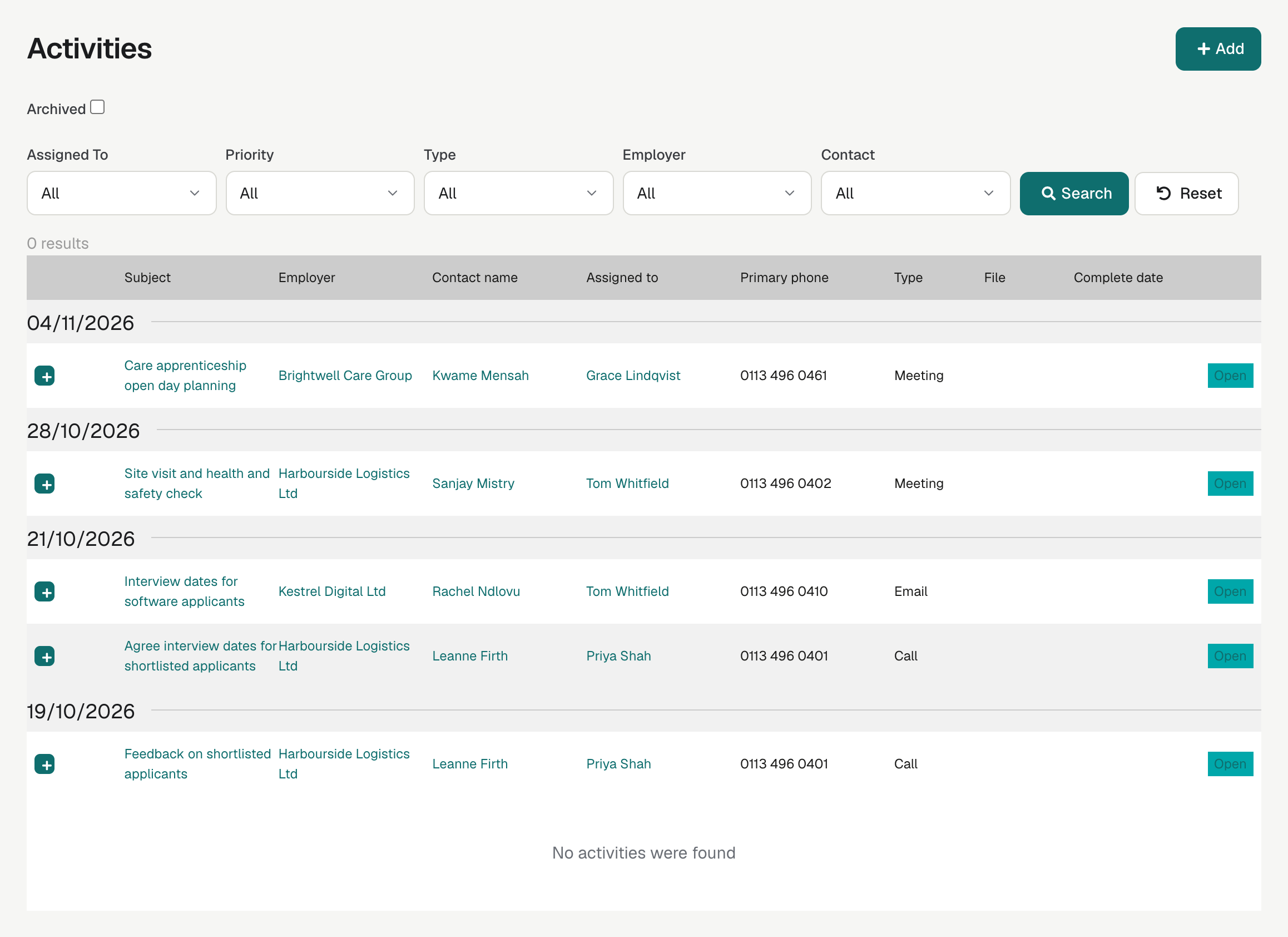
Employers → Activities lists every open activity in your organisation, grouped by due date. Each row shows the Subject, Employer, Contact name, Assigned to, Primary phone, Type and any File. Select the subject or Open to work on it.
- Narrow the list with Assigned To, Priority, Type, Employer and Contact, then select Search. Reset clears them.
- Tick Archived to see completed activities instead.
Read Only users cannot open this list.
Activities on the records
The Activities panel on an Employer shows that employer's activities in due date order, with their Status (new or complete). Select + beside an activity to see its note, or Open to work on it. The panel on a Contact shows only that contact's activities.