Use Ready for enrolment and the enrolment form
Ready for enrolment is the status that confirms an applicant has a place. A status of the Form type sends the applicant a form to complete, such as an enrolment form. This article covers both. You need the User role or above.
Mark an applicant Ready for enrolment
- Open the Application. Check it has a Supervisor.
- In the Summary panel, choose Ready for enrolment in the status dropdown.
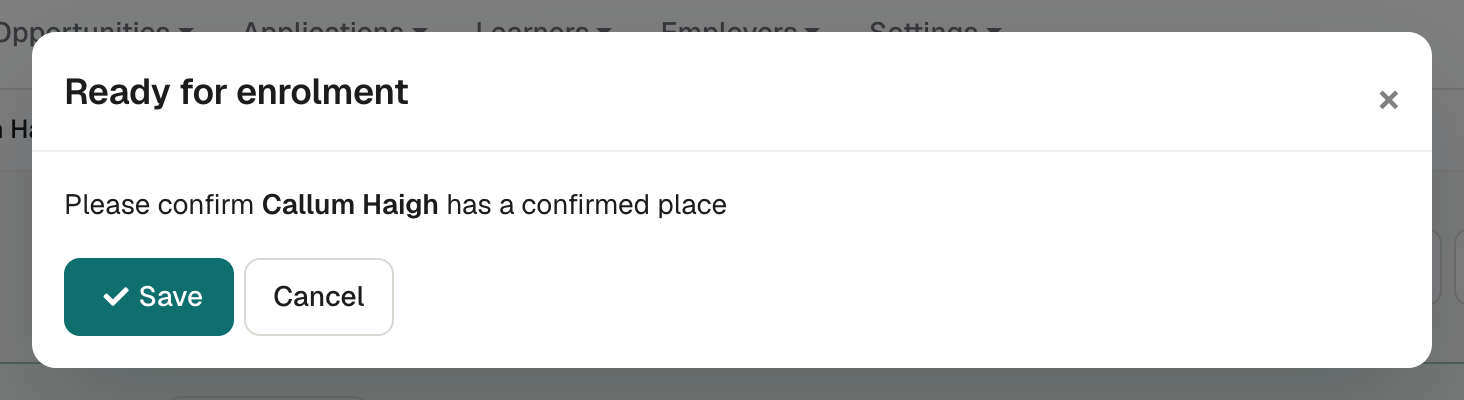
- The Ready for enrolment window says "Please confirm name has a confirmed place".
- If your organisation uses Pellcomp PiCS, you can also create the learner there. See Create a learner in Pellcomp PiCS.
- Select Save.
If you select Cancel, the status goes back to what it was.
What Ready for enrolment does
The applicant's other Applications close. enrola looks for their other Applications to your organisation with the same Unique Learner Number (ULN) or email address. For each one:
- the Active column changes to No,
- Application Logs records "Closed - enrolled on the" followed by the Opportunity, and
- its Supervisor gets an email, "Your applicant has been enrolled".
The Opportunity may be marked Filled. When the number of Applications at Ready for enrolment reaches the Opportunity's Positions available, enrola marks it Filled. It closes the advert on the job boards it can close, such as your enrola job board. It does not close the advert on Find an apprenticeship (shown as NAS in enrola), so close that one yourself.
Changing your mind
To move an Application out of Ready for enrolment, choose another status. enrola asks for a reason, records it in Application Logs, and reopens the applicant's other Applications. See Move an Application through your workflow statuses.
Send an enrolment form
A Form status emails the applicant a link to a form, and saves their answers to the Application. Your Admin builds the form: in Settings → Applicant workflows, a Form status has a Form button. See Set up applicant workflows and status actions.
- Choose the Form status in the status dropdown.
- The Send Email window opens. Its message includes the merge tag
[@application_enrolment_form_link@](Form link in the Legend), which becomes the applicant's link. Keep it in. - Select Send.
While the Application is at that status, the top of the record shows "Form has been sent". Under Forms in the Summary panel, "Form sent" has a click here to view link to the form.
When the applicant completes the form
The applicant opens the link, fills in the form and submits it. They see "Thanks for completing the form. You can now close this window."
Then:
- Their answers are saved straight to the Application. There is no merge step.
- enrola saves a PDF of the completed form. Its file name is the status name followed by "-form.pdf".
- The record shows "Form has been completed" with the PDF and the date, and Forms lists the PDF.
- The Supervisor gets an email, "Form completed", with a link to the Application.
Opening the link again shows the thank-you page.
Good to know
- Ready for enrolment doesn't create a Learner record. When you're ready, use Create Learner record. See Turn an Application into a Learner record.
- The check for "other Applications" uses ULN or email address. It can differ slightly from how the Applications list groups an applicant. See Why does an applicant appear once on each page?
- If the Opportunity has no Positions available, it is never marked Filled automatically.