Add your Opportunities to your own website (Website iFrame)
The Website iFrame puts your enrola job board inside a page on your own website, such as your careers or vacancies page. Your web team pastes a short piece of code once. After that, every Opportunity you post to the enrola job board appears on your website. Admins and Team Owners can change these settings.
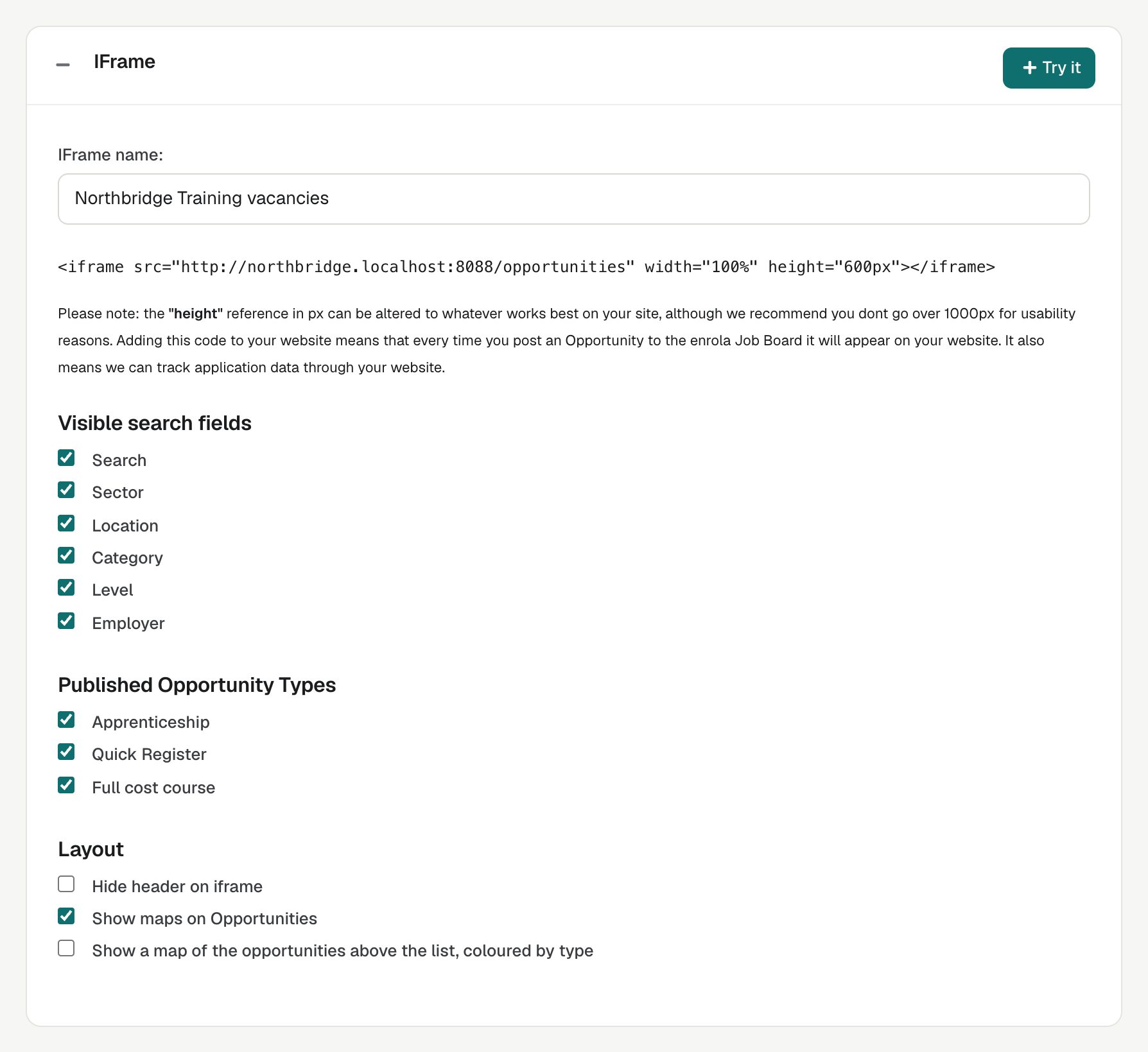
Add the job board to your website
- Open Settings → Website iFrame.
- Copy the code shown under iFrame name. It looks like this, with your own address:
<iframe src="https://yourslug.enrola.co.uk/opportunities" width="100%" height="600px"></iframe> - Send it to whoever looks after your website, and ask them to paste it into the page where the vacancies should go.
You can change height to suit your page. enrola recommends no more than 1000px.
Tip. Ask your web team to add a title to the code, for example title="Our vacancies". Screen readers use it to describe the frame.
Select Try it to open a test page showing the job board in a frame, as it will look on a website.
Choose what it shows
Each change saves as soon as you tick or untick a box. There's no publish step: the change appears on your website and your enrola job board straight away, because they are the same page.
iFrame name
The heading above the list. If you leave it blank, the heading is "Opportunities". enrola saves it when you click outside the box.
Visible search fields
Tick the search fields job seekers can use. The settings page shows their short names:
| Setting | What job seekers see |
|---|---|
| search | Search, for a job title or keyword |
| sector | Sector |
| location | Location and Distance |
| category | Category |
| level | Level |
| employer | Employer |
Untick them all to show the list without a search.
Published Opportunity Types
Tick each Opportunity type whose Opportunities should appear. For example, untick Quick Register if your register-your-interest Opportunities shouldn't be listed. An Opportunity also has to be posted to the enrola job board to appear.
Layout
| Option | What it does |
|---|---|
| Hide header on iframe | Hides the top bar with your logo above the list. Use it when your website's own header is already above the frame. |
| Show maps on Opportunities | Adds a small Google map of the workplace to each vacancy page. The map loads from Google Maps. |
| Show a map of the opportunities above the list, coloured by type | Shows the vacancy map. See Show a map of vacancies on your job board. |
Track applications from your website
Applicants who apply through the frame on your website are recorded as coming from your website, so you can compare it with other job boards. They show Website in the Job board column of an Opportunity's Applicants panel, and you can filter the Applications list by it.
Good to know
- Your branding comes from Settings → Branding.
- The application form opens inside the frame, so a Google Tag Manager container on your own page can't see it. enrola can load your container on its own pages instead. See Track applications with Google Tag Manager.
- If you'd rather design the page yourself, use the RSS feed or the API. See Your Opportunities as an RSS feed and Use enrola's API from your own systems.