How do employers give feedback on a profile?
When an employer opens a profile you shared, they can tell you whether they want to interview the applicant. Their feedback lands on the Application and the Supervisor is told by email.
What the employer does
- They open the profile from your email.
- They select Send feedback. It shows when the Application has a Supervisor.
- The Send feedback form asks:
- Would you like to interview this applicant? (Yes or No)
- Please add any comments here
- Your name
- Your email
- They select Submit feedback and see "Your feedback has been sent".
The form explains that the feedback goes to your recruitment team and is recorded against the Application. Employers can send feedback more than once, and each one is kept.

What happens in enrola
- The Supervisor gets an email, "Applicant Profile - feedback received", saying who sent feedback, with a link to the Application. Replying to it goes to the employer.
- The status moves on. If the Application has a Supervisor, enrola moves it to your workflow's Profile feedback status and logs the change.
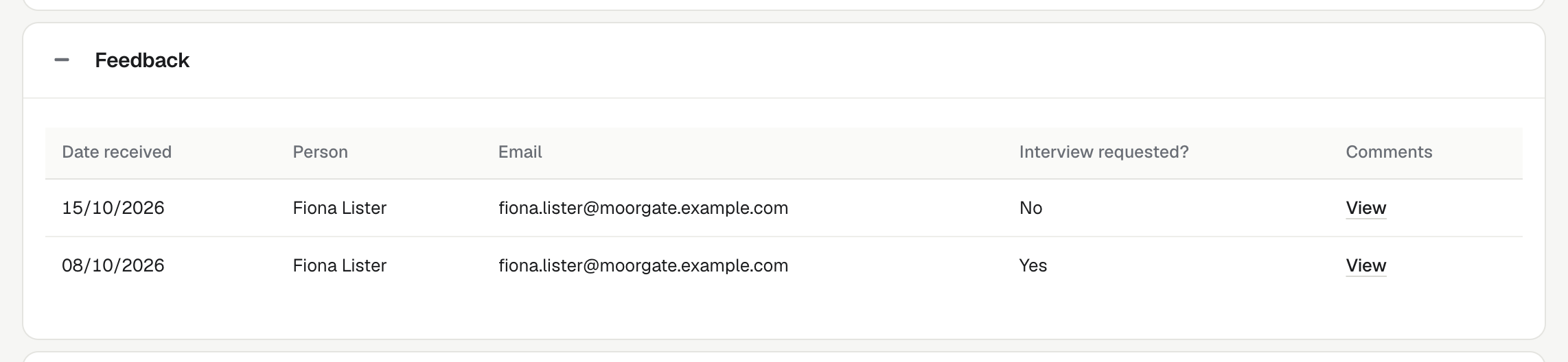
- The answers are saved in the Application's Feedback panel.
Read the feedback
- Open the Application.
- Go to the Feedback panel. If you can't see it, add it with Edit page layout.
- Each row shows Date received, Person, Email and Interview requested?.
- Select View under Comments to read what they wrote.
Next steps
- If the employer wants an interview, book one. See Set interview availability and book interviews.
- Move the Application to the status that fits, such as Submitted To Employer or Rejected. See Move an Application through your workflow statuses.
Good to know
- The feedback form works only while the profile link does: 30 days from when you sent it. See Why has a shared profile link stopped working?
- If the Application has no Supervisor, the Send feedback button doesn't show. Assign a Supervisor before you share the profile.
- You can also send the employer a survey about your service, using an Employer workflow status. See Move Employers and Contacts through workflow statuses.